Halide Mark II: now for iOS 18, with Process Zero
Updated for the latest and greatest devices and built for the newest version of iOS.
lux.camera
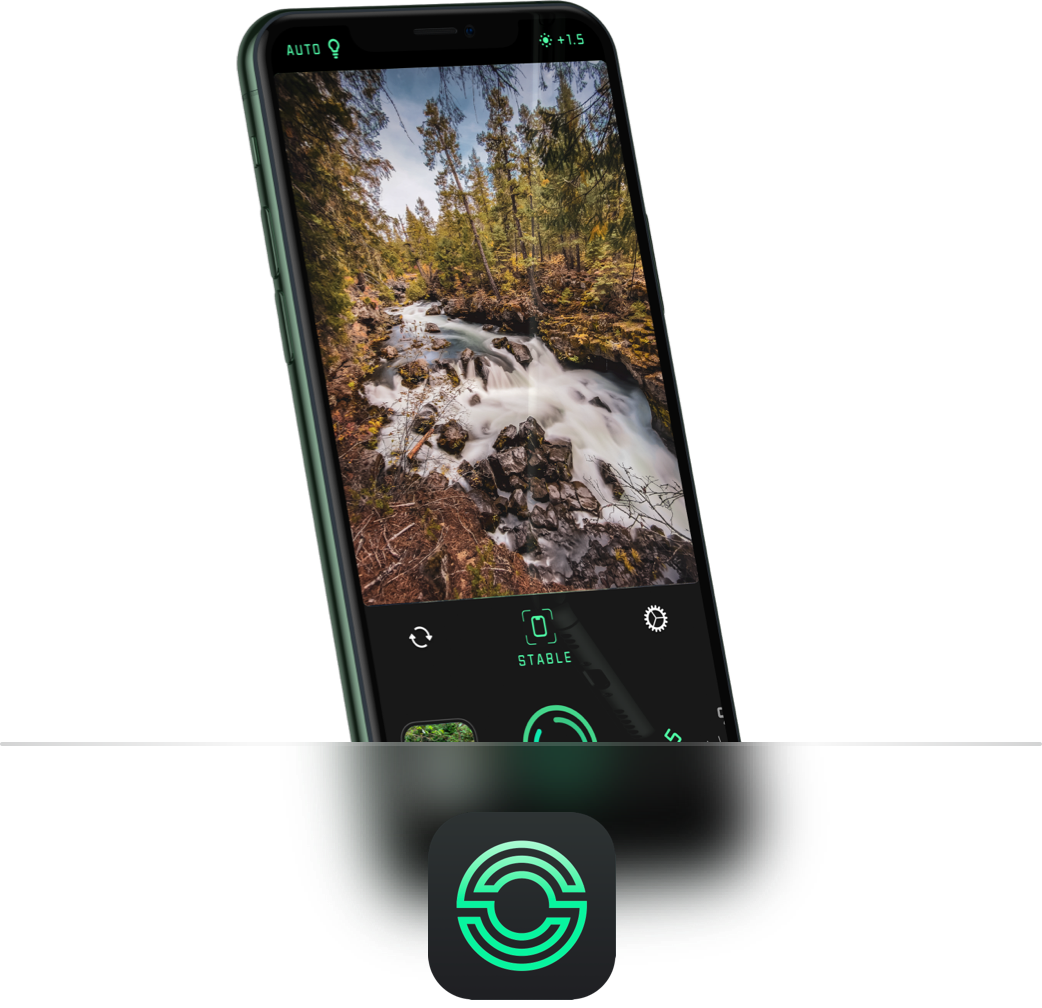
Now with Process Zero - for zero-AI, minimally processed shots.
Featuring the best photography tools on iOS, built-in lessons, Lock Screen access, and many more features for getting the best shot.

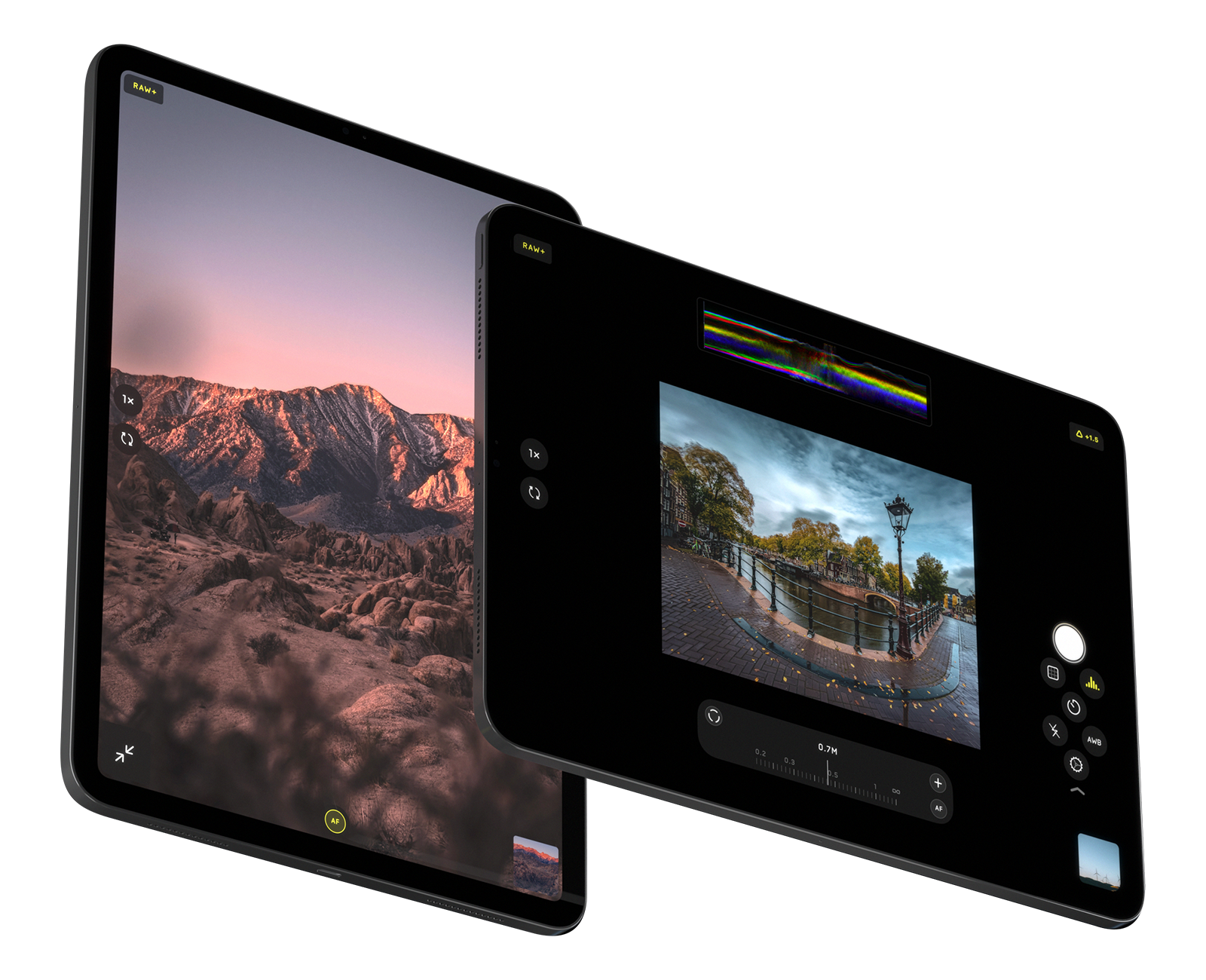
Meet Halide for iPad. Packed with all the powerful features of Halide for iPhone and a few special ones for better photography on big screens.
Enjoy the brand-new, completely custom iPad interface and features like Pro View to get a scaled-down, unobstructed view of your shot with plenty of space for your Pro tools and readouts.

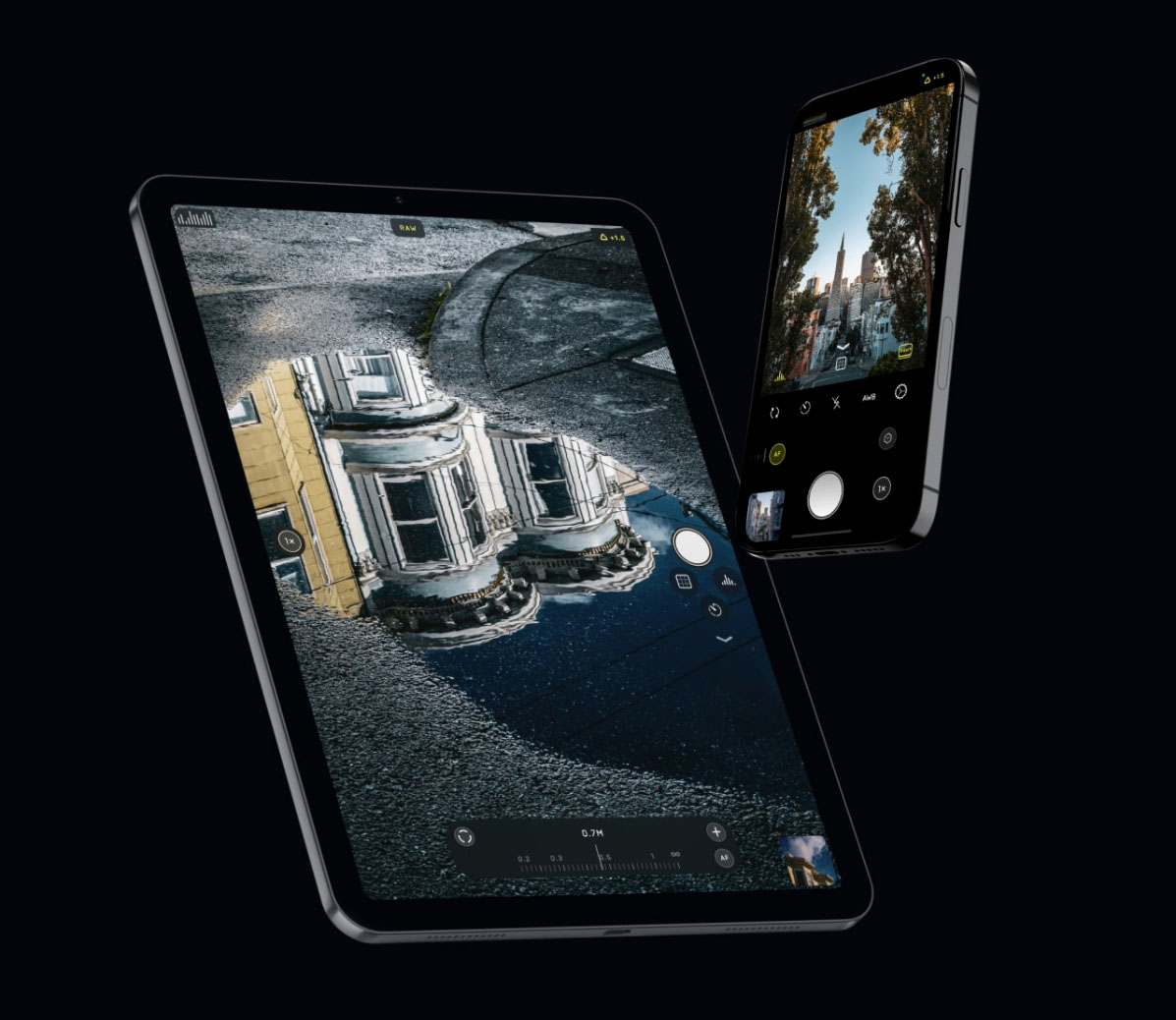
Always up to date — now with iOS 18 Lock Screen Capture. Halide packs intuitive gestures, gorgeous details, and effortless ease of use.
Designed to be used with one hand on all phones without compromising on power.
New in Mark II: Edge gestures for mode switching. Tactile Touch enables and disables focus and exposure aids as you need them. Designed with three new, custom typefaces.

Halide Mark II packs the best pro camera tools on the App Store.
Check for accurate exposures with the new extended dynamic range (XDR) 14-bit color zebras and waveforms.
Use your ideal histogram with large and small displays featuring monochrome and color options. Perfect manual focus with automatic enhanced focus peaking and a new focus loupe.
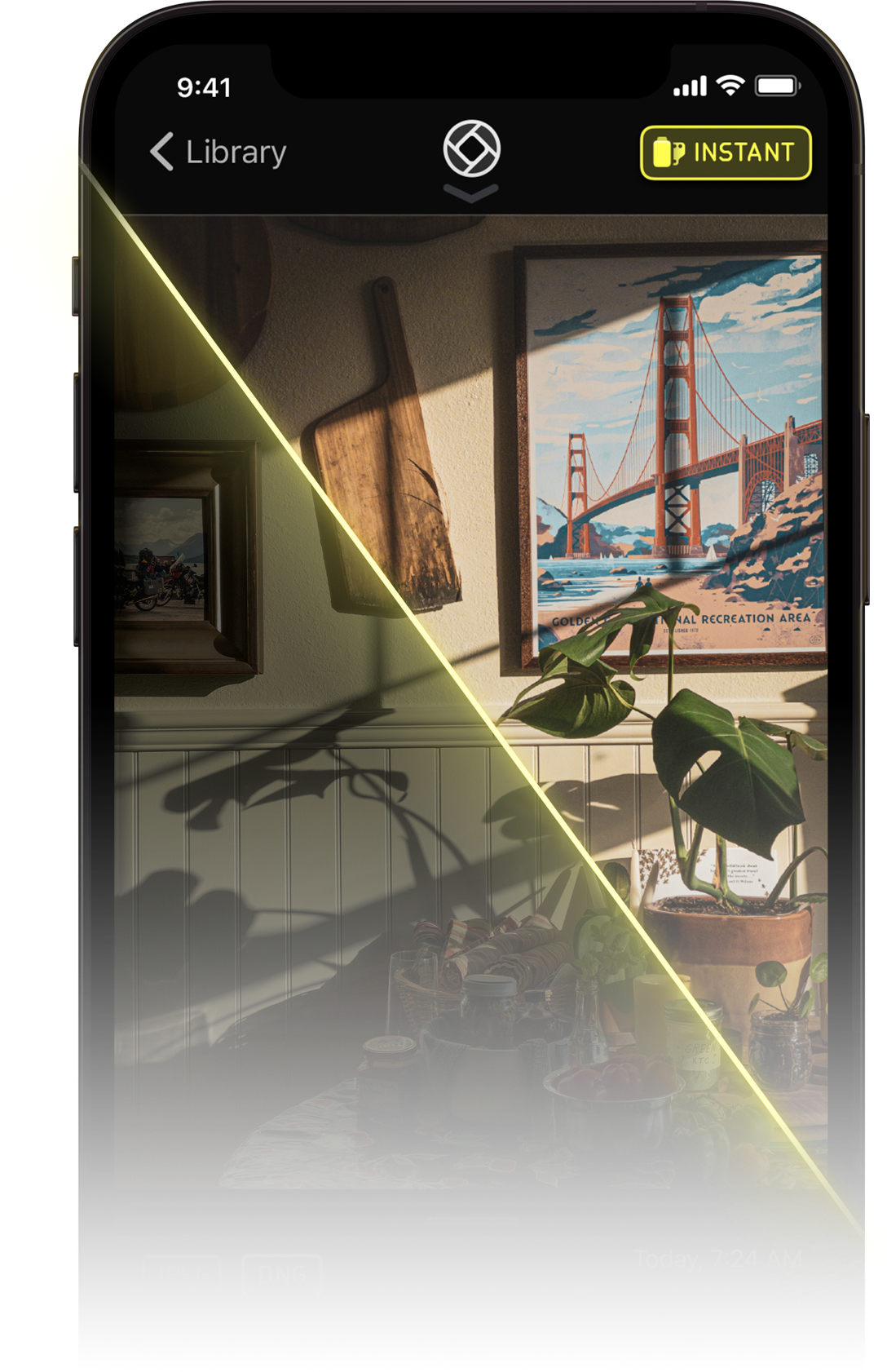
You might love your iPhone's super-smart, AI based image processing, or you might not.
That's why Halide lets you pick your processing — even between shots. Choose from iPhone's default image processing, or reduced processing, or choose Process Zero: a single-shot RAW capture mode that gives you beautiful film-like shots with minimal processing and zero AI right out of the camera.
The new Image Lab lets you re-develop the shot later for different exposures, or you can edit your photo in an image editor with huge flexibility — because Halide saves raw sensor data along with your shot.

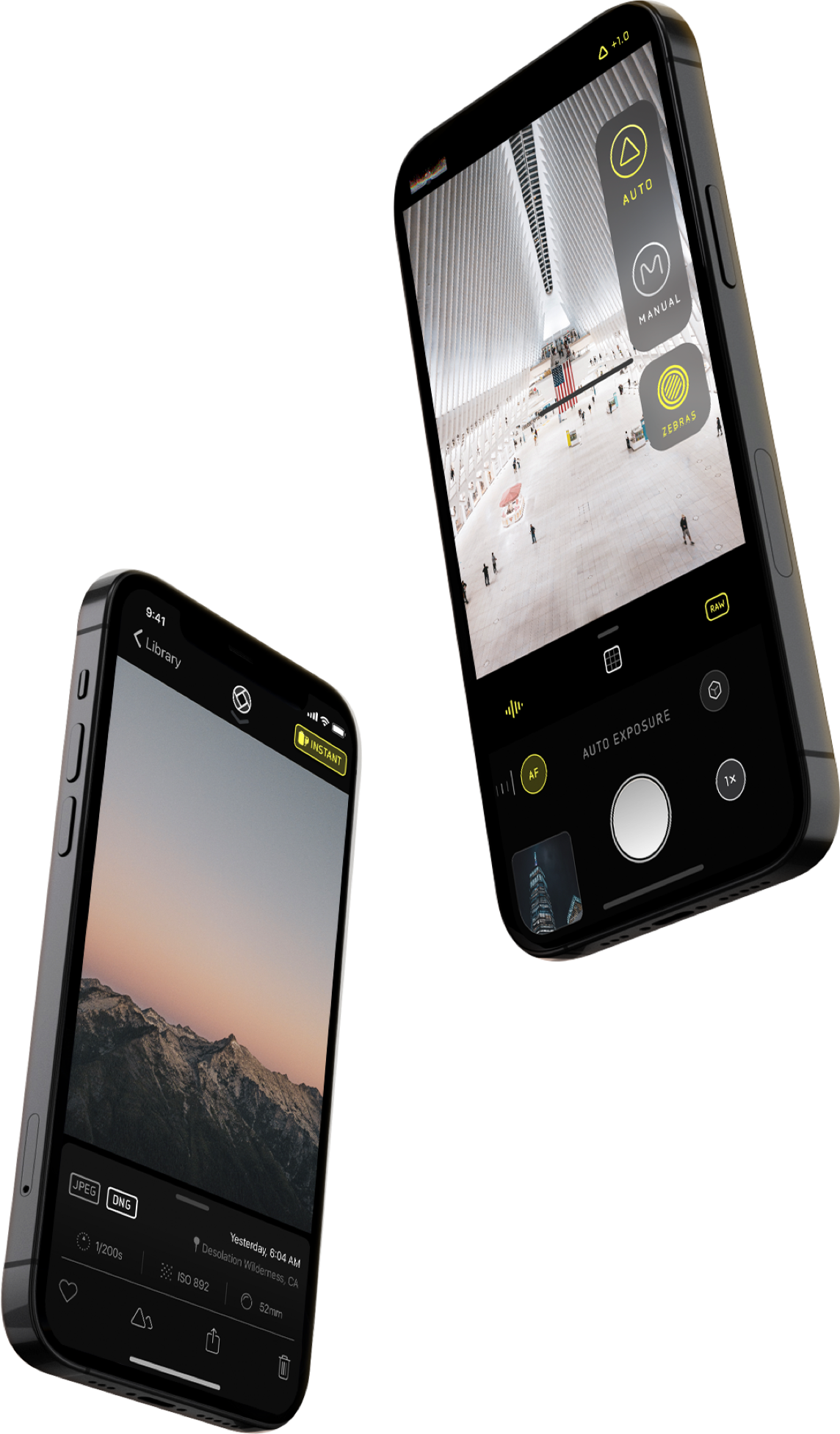
Halide was designed with our favorite object in mind: the delightfully tactile and beautiful film camera, without compromising on the flexibility and power of mobile photography.
Gestures are modeled after the intuitive manipulation of dials: swiping up and down for exposure, and left and right for focus. The interface is simple and free of clutter, letting you focus on your artistic process.
We pay homage to the design heritage of more than a century of camera design with completely custom typefaces and typography throughout based on etched type on camera bodies and lenses.
: If documents are stuck in the queue, search for "Services" in Windows, find Print Spooler , right-click it, and select Restart . Resource Links
A user on the Canon Community forums shared a valuable tip: after struggling with a similar issue, they found success by uninstalling the driver that Windows automatically installed and then using the official Canon software from the printer’s included CD-ROM or website to reinstall the driver.
The golden rule: Always download the dedicated package from Canon’s website. Once you install the correct driver, the usbprint canondevicef144 label disappears, replaced by a fully functional printer.
[USBPRINT_CopyFiles] usbmon.dll,,,0x00000020 usbprint canondevicef144
For those determined to perform their own repairs, compatibility with the right Service Tool version, proper Service Mode entry, and a suitable Windows environment are the keys to success. However, for users seeking a hassle-free experience, contacting an authorized Canon service center remains the most reliable path to getting your printer back in working order.
To resolve the F144 error, try the following troubleshooting steps:
This string is part of the Windows Plug-and-Play (PnP) system, allowing the operating system to match the connected hardware with its corresponding software drivers. Technical Identification Hardware ID: USBPRINT\CanonDeviceF144 Primary Device: Canon PIXMA iP2770 (a single-function inkjet printer) : If documents are stuck in the queue,
A: It indicates a driver problem (error code 3, 10, or 32). Uninstall and reinstall the driver using the steps above. You might need to remove the device from Printers & scanners first.
For many Canon models, the Service Mode entry procedure follows a pattern similar to this:
By following the steps in this guide, you can confidently take control of the situation, get your printer back to a working state, and understand exactly what that cryptic code usbprint canondevicef144 means the next time you see it. Once you install the correct driver, the usbprint
If the problem persists, a remnant of a previous installation or a conflicting driver could be the cause. Performing a "clean boot" or using Canon's dedicated driver cleanup utility (if available for your model) can help. You can also use Windows' built-in console ( printmanagement.msc ) to manually remove any old or unused printer drivers and ports that might be causing a conflict.
The string is a specific hardware identification string (Hardware ID) used by the Windows operating system to detect and configure a Canon laser printer over a physical USB connection. When you connect a device like the Canon imageCLASS X MF1440 series or the Canon imageFORCE 1440iF Go to product viewer dialog for this item.




© 2026 — Reese Canvas